Lead lists help you organize and manage prospects before using them in your outreach campaigns.
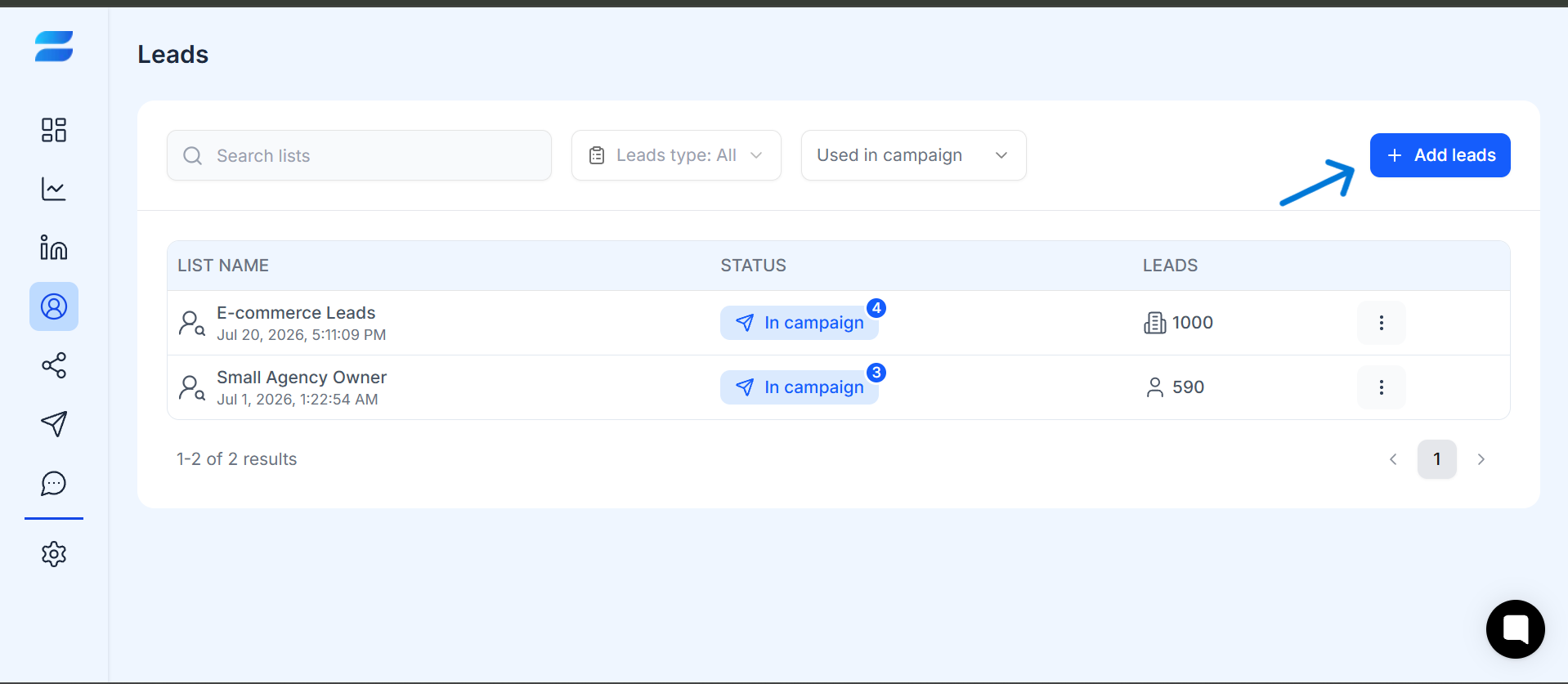
You can create a new list from the Leads section, add or import leads, and manage your lists from the Leads dashboard.
To create a new lead list:
Open Leads.
Click Add leads.
Choose the import method you want to use.
Follow the steps for the selected import method.
Enter the required list information, such as the List Name.
Complete the import process.
Once the import is complete, the new list will appear on the Leads dashboard.
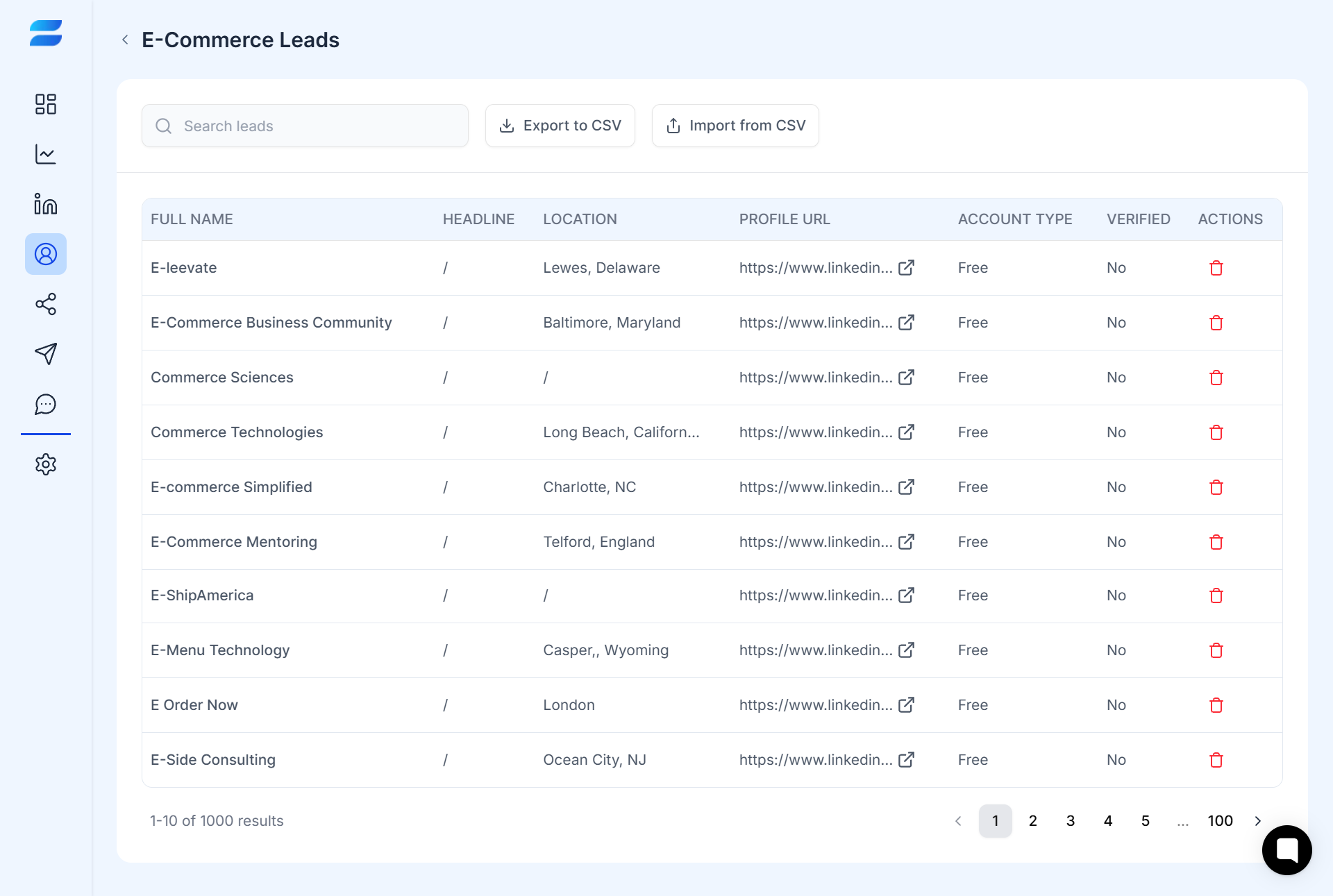
After a list has been created, you can open it from the Leads dashboard to view the leads it contains.
Open Leads.
Find the list you want to review.
Click the list name.
Review the leads in the list.
The list view shows information such as:
Full name
Headline
Location
Profile URL
Account type
Verification status
Available actions
You can also search leads, import additional leads from CSV, or export the list to CSV from this view.
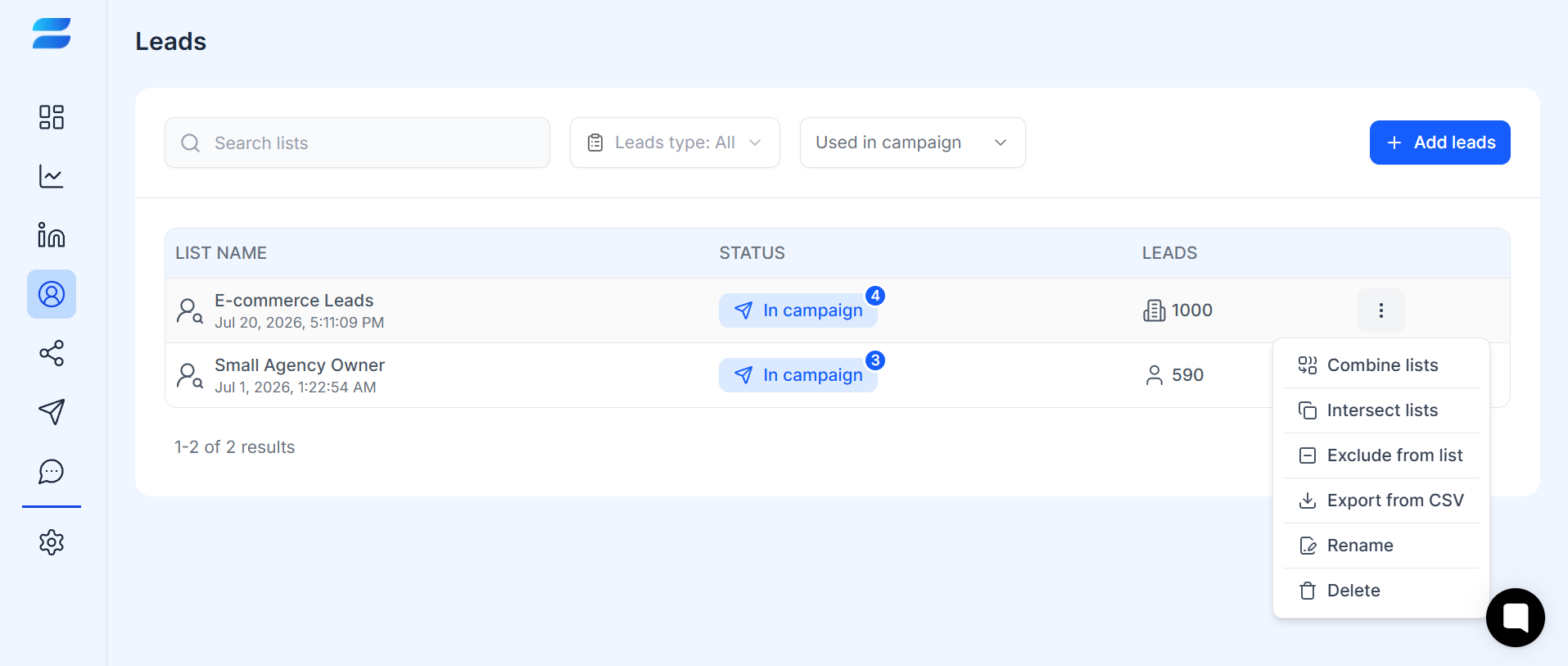
You can manage your lists directly from the Leads dashboard.
Click the three-dot menu next to a list to access available list-management actions.
Depending on your needs, you can:
Combine lists to bring lists together.
Intersect lists to work with leads shared between lists.
Exclude from list to remove specific leads from a list.
Export to CSV to export the list data.
Rename the list.
Delete the list.
Tips
→ Give your lists clear and descriptive names.
→ Create separate lists for different audiences, industries, regions, or outreach campaigns.
→ Review your lists regularly and remove irrelevant or duplicate leads.
→ Use Combine lists or Intersect lists when you need to organize prospects across multiple lists.
→ Use Exclude from list when certain prospects should no longer be included in a list.
→ Export a list to CSV when you need a copy of the lead data for another workflow.
For example, you could use naming conventions such as:
Audience – Industry – Region
Example:
Founders – SaaS – USA
This makes it easier to identify the right list when managing leads or setting up campaigns.
Filtering & Segmenting Leads
Adding an Exclude / Blacklist List
Tagging & Categorizing Leads
Removing Duplicate Leads