SendCopy.ai is a LinkedIn outreach and lead-generation platform designed to help sales teams, recruiters, founders, marketers, and agencies manage LinkedIn prospecting from one place.
Instead of manually searching for prospects, sending connection requests, following up, and checking multiple LinkedIn accounts, SendCopy.ai helps you organize these activities into campaigns and sequences.
The basic SendCopy workflow is:
Connect LinkedIn Account → Add Leads → Create Campaign → Set Sequence → Launch → Manage Replies → Review Analytics
Start by connecting the LinkedIn account you want to use as a sender.
Once connected, you can configure the account's sending settings, working hours, limits, and other available safety controls.
Important: Only connect LinkedIn accounts that you own or are authorized to manage.
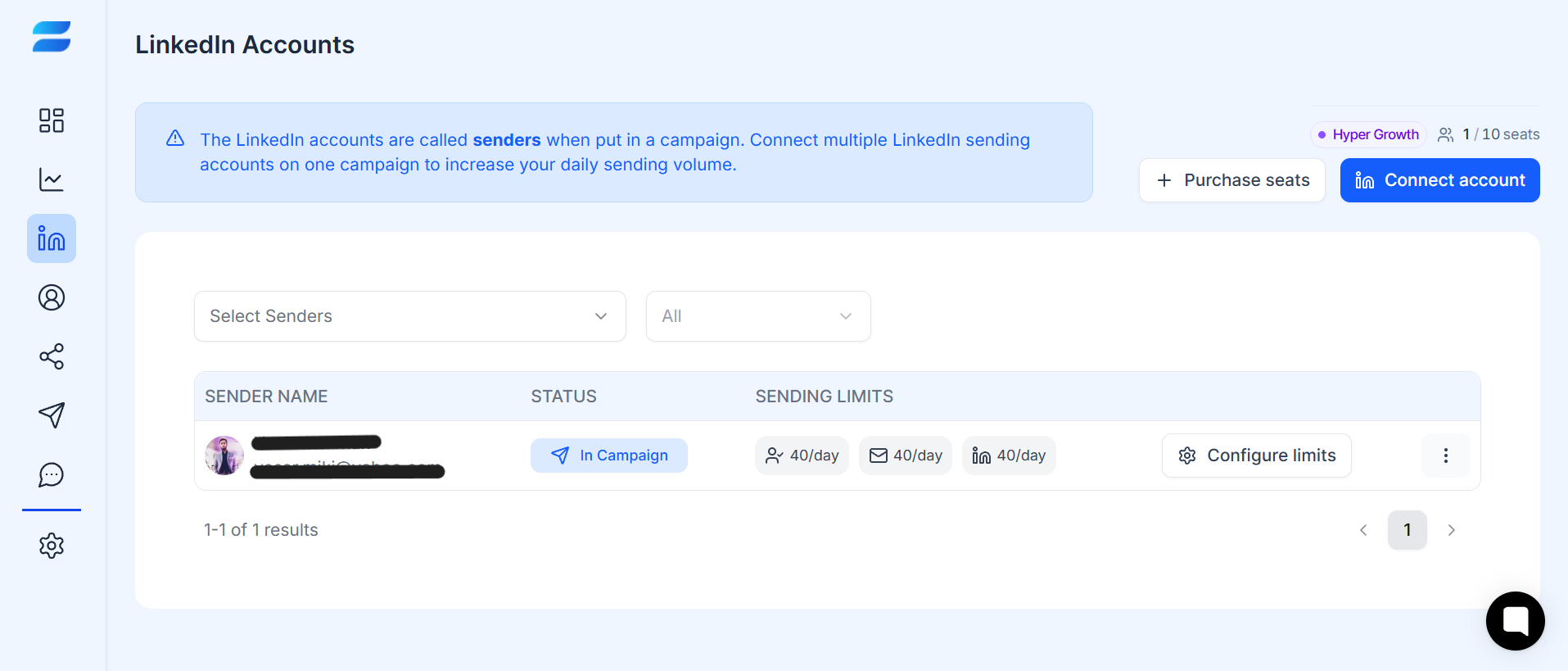
For more information, see How to Connect a LinkedIn Account to SendCopy.
Next, add the people you want to contact. Go to Leads from the left sidebar and click “Add Leads”.
Depending on your workflow, you can import leads using supported sources such as:
CSV files
LinkedIn searches
Sales Navigator searches
Other supported lead sources
You can then organize your prospects into lists and use filters, tags, and exclusions to keep your campaigns targeted.
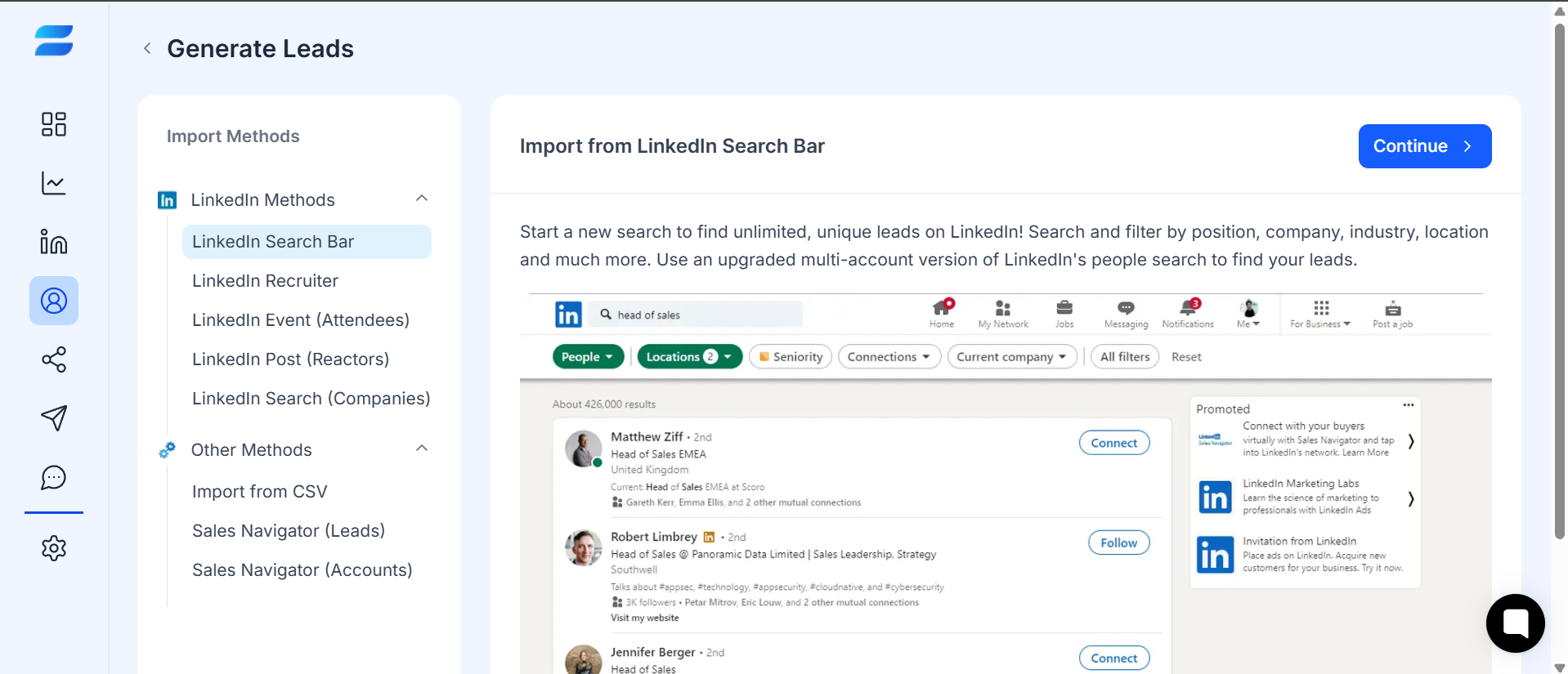
See How to Import Leads (CSV Upload) for a detailed walkthrough.
A campaign connects your leads with your outreach strategy.
When creating a campaign, you can choose the appropriate campaign type, select your leads, configure your sender, and create your message sequence.
A campaign might include:
Initial connection request
Follow-up message
Additional follow-up
Final follow-up
The exact steps available depend on the campaign type and features enabled in your SendCopy account.
Read How to Create Your First Campaign for the complete process.
A sequence determines what happens after the campaign starts.
For example:
Day 1: Connection request
Day 3: Follow-up message
Day 6: Value-based follow-up
Day 10: Final follow-up
You can use supported personalization variables to make messages more relevant to individual prospects.
For example:
Hi {{First Name}}, I noticed you're working in {{Industry}}...
Always preview your messages before launching a campaign to make sure the variables and formatting work correctly.
See How to Build a Message Sequence That Gets Replies for best practices.
Before launching, review:
Sending limits
Working hours
Time zone
Sender assignment
Warm-up settings
Campaign schedule
These settings help control when and how campaign activities are processed.
Learn more in Setting Safe Daily & Weekly Sending Limits.
Once everything is ready, launch the campaign.
SendCopy will process eligible leads according to your campaign configuration and sending settings.
You can monitor campaign activity through the dashboard and review conversations through the Unibox.
If something doesn't appear to be sending, check Why Isn't My Campaign Sending?
Unibox is SendCopy's unified inbox for managing LinkedIn conversations.
Instead of switching between multiple LinkedIn accounts, you can use the inbox to organize and manage conversations from connected senders.
You can use available filters and tags to prioritize conversations and identify prospects that need a response.
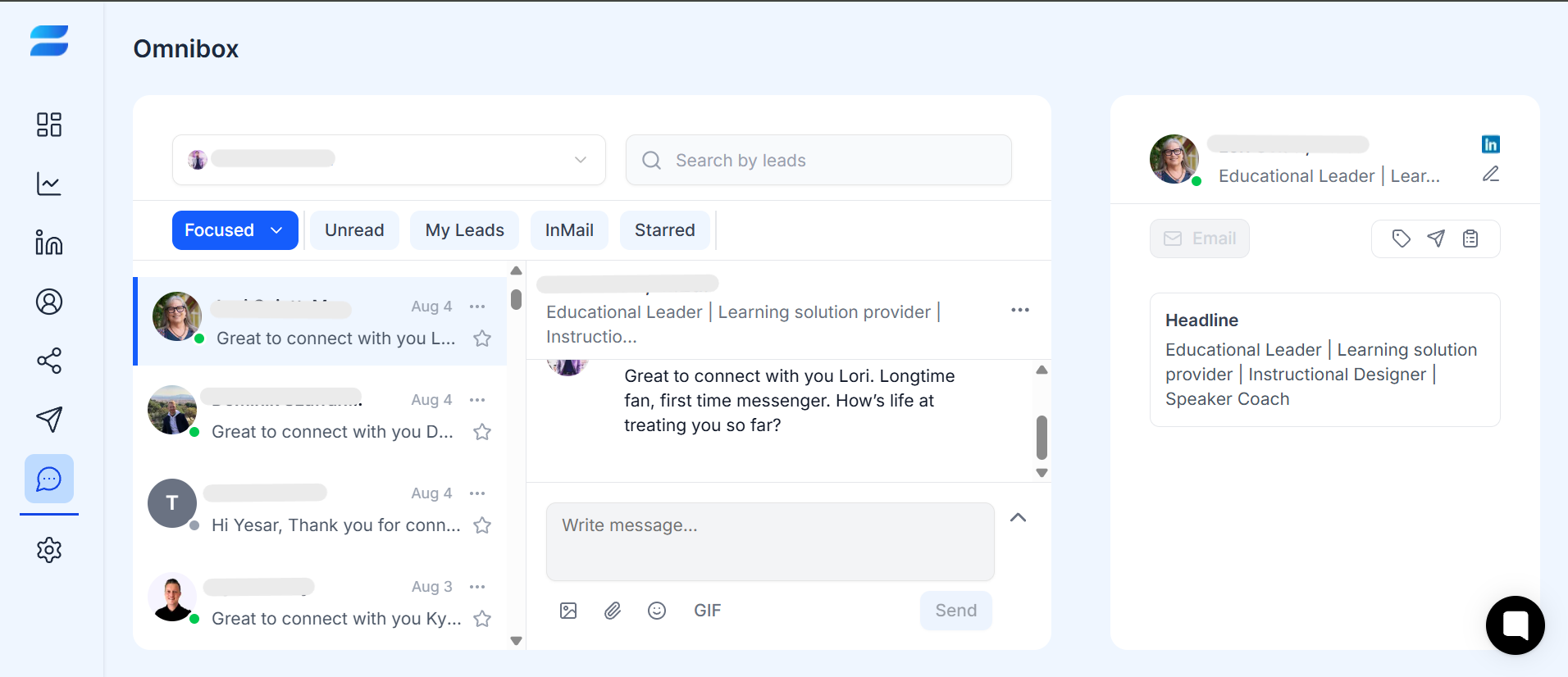
SendCopy is designed to support workflows where multiple LinkedIn sender accounts are being managed.
This can be useful for:
Sales teams
Lead-generation teams
Recruitment teams
Agencies
Multi-client outreach operations
Depending on your plan and configuration, multiple senders can be organized and monitored from the SendCopy workspace.
For more information, see Managing Conversations Across Multiple LinkedIn Accounts.
No platform can guarantee that a LinkedIn account will never be restricted.
LinkedIn controls its own policies, limits, security systems, and enforcement decisions.
SendCopy provides account-management and safety controls intended to help users avoid unnecessary spikes and manage outreach more responsibly.
For example, users can configure:
Sending limits
Working hours
Warm-up settings
Sender management
Activity scheduling
The safest approach is to use conservative settings, target relevant prospects, personalize your messages, and avoid aggressive outreach behavior.
See Account Warm-Up: Best Practices for New LinkedIn Accounts and Why Is My LinkedIn Account Restricted or Flagged?
SendCopy can be useful for a range of teams and professionals, including:
Sales professionals
Founders
Business development teams
Recruiters
Lead-generation specialists
Marketing teams
Agencies
LinkedIn outreach teams
The best setup depends on your goals, audience, number of senders, and outreach workflow.
Tips
• Start with a small, well-targeted lead list.
• Keep your messages short and relevant.
• Personalize your outreach where possible.
• Review your sender settings before launching.
• Monitor your campaign after the first launch.
• Use Unibox to respond to interested prospects quickly.
• Review analytics regularly instead of focusing only on the number of messages sent.
If your campaign isn't behaving as expected:
Check that your LinkedIn sender is connected.
Confirm that the campaign is active.
Check whether your leads are eligible.
Review sending limits and working hours.
Check whether leads are already in another campaign.
Review any error or status messages.
Contact SendCopy Support if the problem continues.
When contacting support, include the campaign name, sender, error message, approximate time of the problem, and a screenshot.
How to Connect a LinkedIn Account to SendCopy
How to Import Leads (CSV Upload)
How to Create Your First Campaign
How to Build a Message Sequence That Gets Replies
Unibox Overview: Managing LinkedIn Conversations in One Place
Analytics Dashboard Overview
Why Isn't My Campaign Sending?