Webhooks let SendCopy automatically send information to another system when a specific event happens in your account.
You can use webhooks to send SendCopy activity to a CRM, automation platform, Slack workflow, or your own application.
Basic flow:
SendCopy → Webhook URL → Your Application / Automation Tool
Webhooks send data using HTTPS and JSON.
SendCopy currently supports these events:
Connection Request Sent - A new LinkedIn connection request is sent.
Connection Request Accepted - A prospect accepts your connection request.
Message Sent - A campaign message is sent to a connected lead.
InMail Sent - An InMail is sent to a lead outside your network.
First Message Reply Received - A prospect replies to a message for the first time.
First InMail Reply Received - A prospect replies to an InMail for the first time.
Follow Sent - SendCopy follows a prospect's profile.
Liked Post - SendCopy likes a prospect's post as part of a sequence.
Viewed Profile - SendCopy views a prospect's profile as part of a sequence.
Each webhook listens for one event. If you want to receive multiple event types, create a separate webhook for each event.
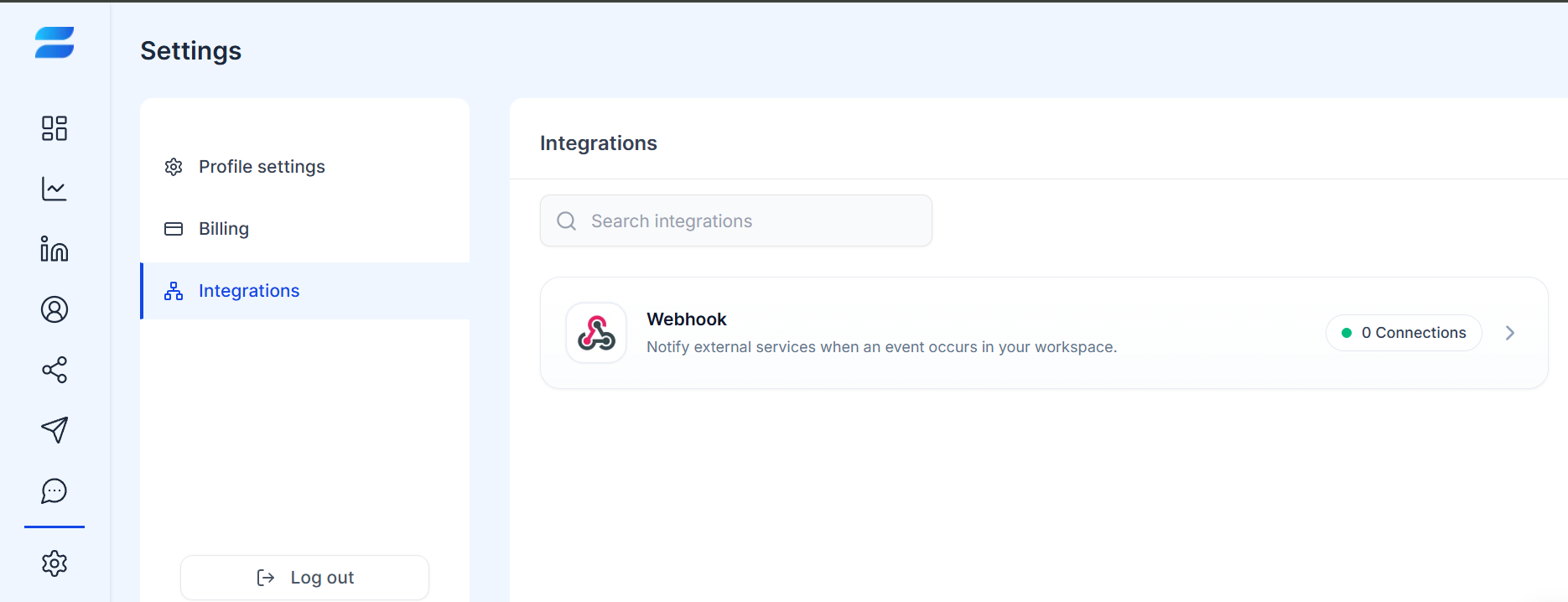
Go to Settings → Integrations in SendCopy.
Open the Webhook integration.
Click Create a webhook.
Enter a name for the webhook.
Enter your destination URL.
Select the event type you want to receive.
Select the campaign or campaigns the webhook should apply to.
Add custom headers if your endpoint requires authentication.
Save the webhook.
Once saved, the webhook becomes active, and SendCopy can begin delivering matching events to your endpoint.
SendCopy sends webhook data as an HTTP POST request to your configured URL.
Your endpoint should be prepared to receive and process a JSON request body.
Example:
{
  "event": "connection_request.accepted",
  "timestamp": "2023-08-09T09:41:12Z",
  "campaign": "Q3 SaaS Outreach",
  "lead": {
    "name": "Sarah Mitchell",
    "title": "VP Sales",
    "company": "Stripe"
  }
}
The exact fields can vary depending on the event. Your application should therefore avoid assuming that every possible field will always be present.
If your webhook endpoint requires authentication or additional request information, you can add custom headers when creating the webhook.
For example:
Authorization: Bearer YOUR_TOKENSendCopy supports up to five custom headers per webhook.
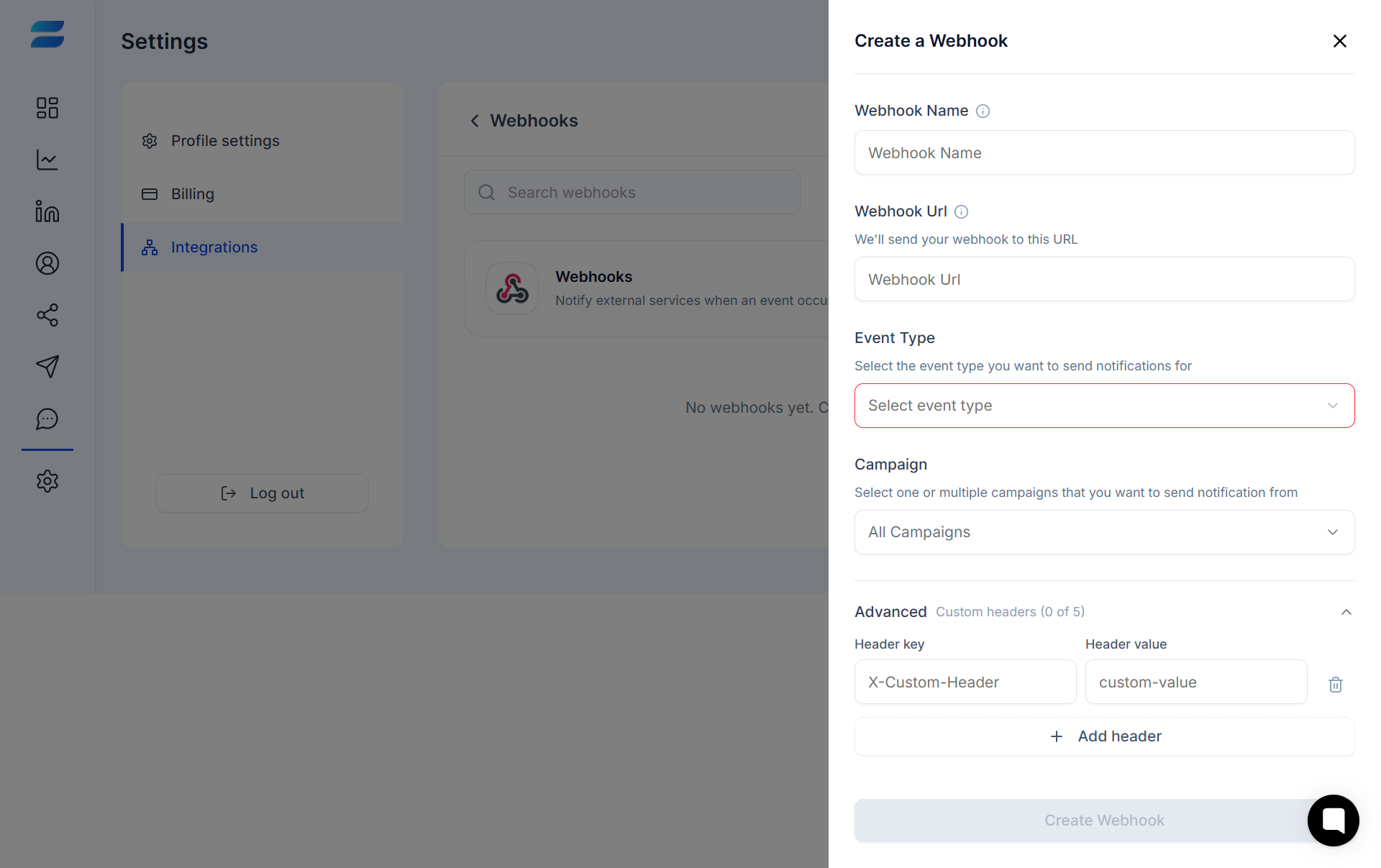
When creating a webhook, you can choose which campaigns it applies to.
For example, you could configure a webhook to:
Receive events from all campaigns, or
Receive events only from selected campaigns.
This lets you send specific campaign activity to different systems or workflows.
Your application should safely process incoming webhook requests and validate the information it needs.
Depending on the event, useful information may include:
Event type
Timestamp
Campaign
Lead information
Event-specific activity or status information
Do not assume every event contains the same fields. Build your integration so that missing or newly added fields do not cause it to fail.
SendCopy's webhook system uses HTTPS and includes delivery retry and logging capabilities.
During development, log incoming webhook requests so you can inspect:
Request headers
Event type
JSON payload
HTTP response status
Any validation or processing errors
Make sure your endpoint returns an appropriate successful HTTP response after processing a valid webhook.
If your endpoint is not receiving events, first check the webhook URL, selected event, campaign configuration, endpoint availability, and your server logs.
Tips
↳ Use a dedicated endpoint for each webhook when you need different processing logic.
↳ Validate incoming data before using it in your CRM or automation workflow.
↳ Store the event timestamp and event type for troubleshooting and audit purposes.
↳ Handle missing fields gracefully.
↳ Use HTTPS for your webhook endpoint.
↳ Log webhook requests while developing your integration, then reduce sensitive logging in production.