To use SendCopy.ai for LinkedIn outreach, first connect an authorized LinkedIn account. The platform uses a secure authorization process and doesn't require you to enter your LinkedIn password.
Make sure:
You have access to the LinkedIn account you want to connect.
You are authorized to use the account.
Your LinkedIn account is active.
Two-factor authentication or additional verification information is available if LinkedIn requests it.
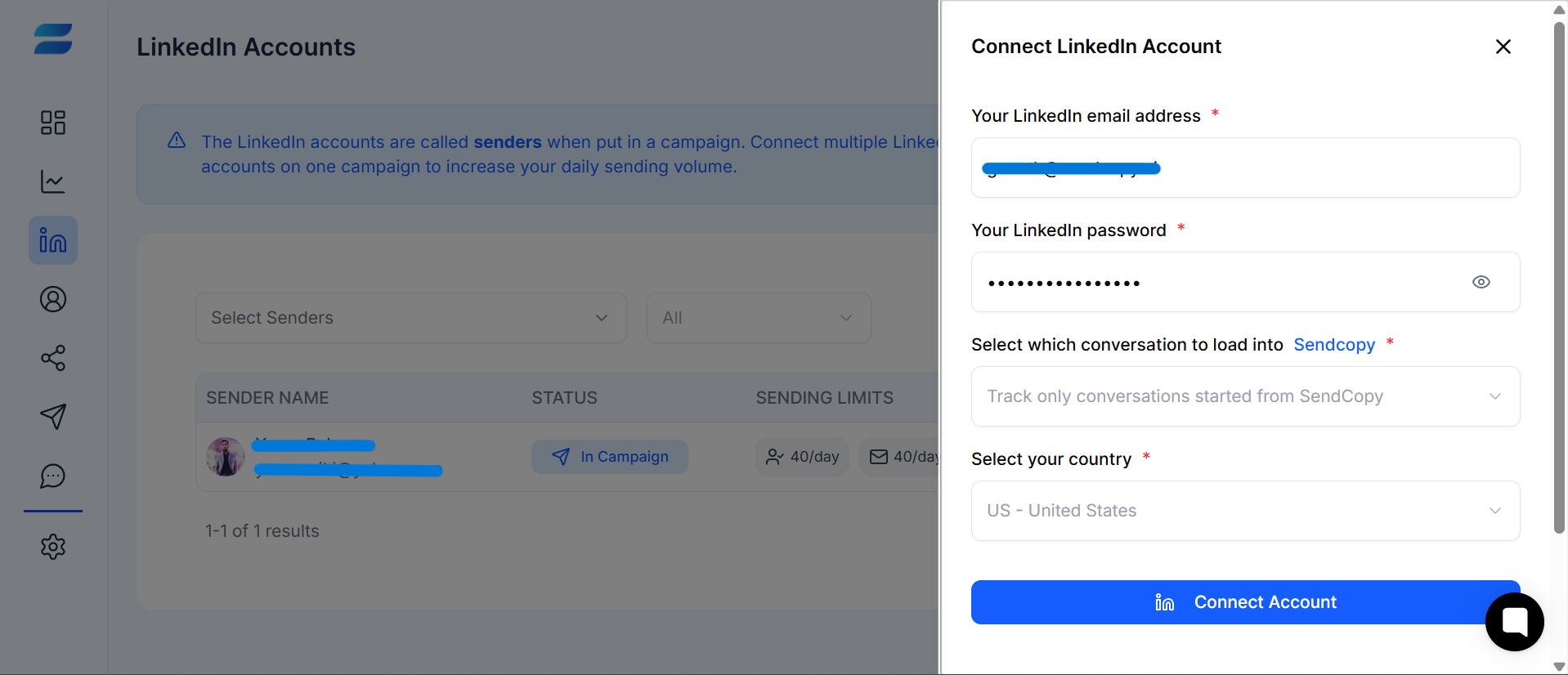
Log in to your SendCopy.ai account.
Open the LinkedIn Accounts section from the left sidebar.
Select Add LinkedIn Account.
Follow the authorization instructions shown on screen.
Complete any LinkedIn verification that appears.
Return to the SendCopy.ai dashboard and wait for the account status to show as connected.
Review the sender settings before launching a campaign.
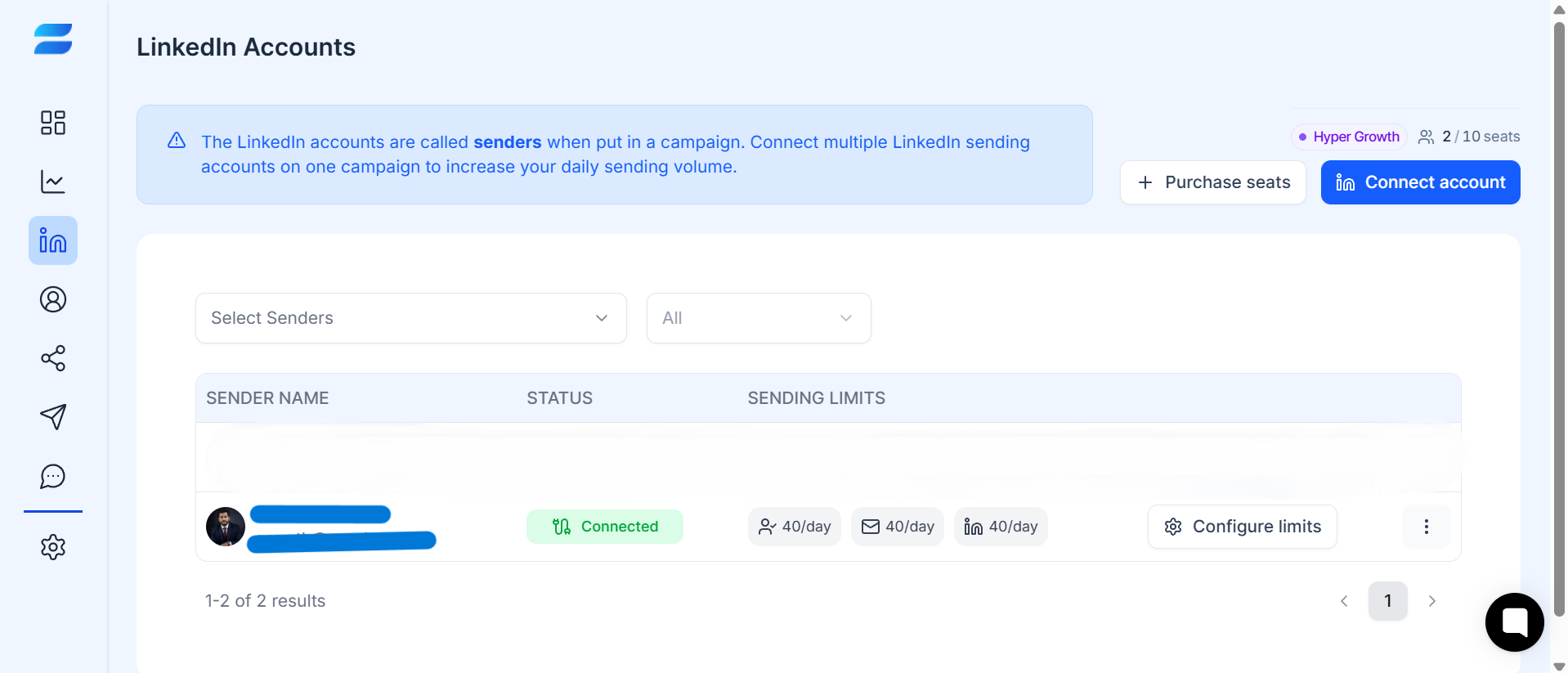
Note: Before adding your LinkedIn account, you need to purchase a plan.
Once connected, your LinkedIn account can be used as a sender for campaigns, depending on your plan and account configuration.
You can also manage multiple sender accounts where your plan supports multiple sender seats.
Tips
▸Connect only LinkedIn accounts that you own or are authorized to manage.
▸Complete your LinkedIn profile before starting outreach.
▸Avoid launching a large campaign immediately after connecting a new account.
▸Review your sending limits and working hours first.
Check your LinkedIn login/verification status and try reconnecting. If the problem continues, contact SendCopy.ai Support with the account status and error message.
Two-Factor Authentication (2FA) & Login Verification
How to Reconnect a Disconnected Account