The Analytics Dashboard helps you understand how your LinkedIn outreach is performing.
Instead of looking only at the number of messages or connection requests sent, you can use the dashboard to review campaign activity, sender performance, connection rates, reply rates, and overall engagement.
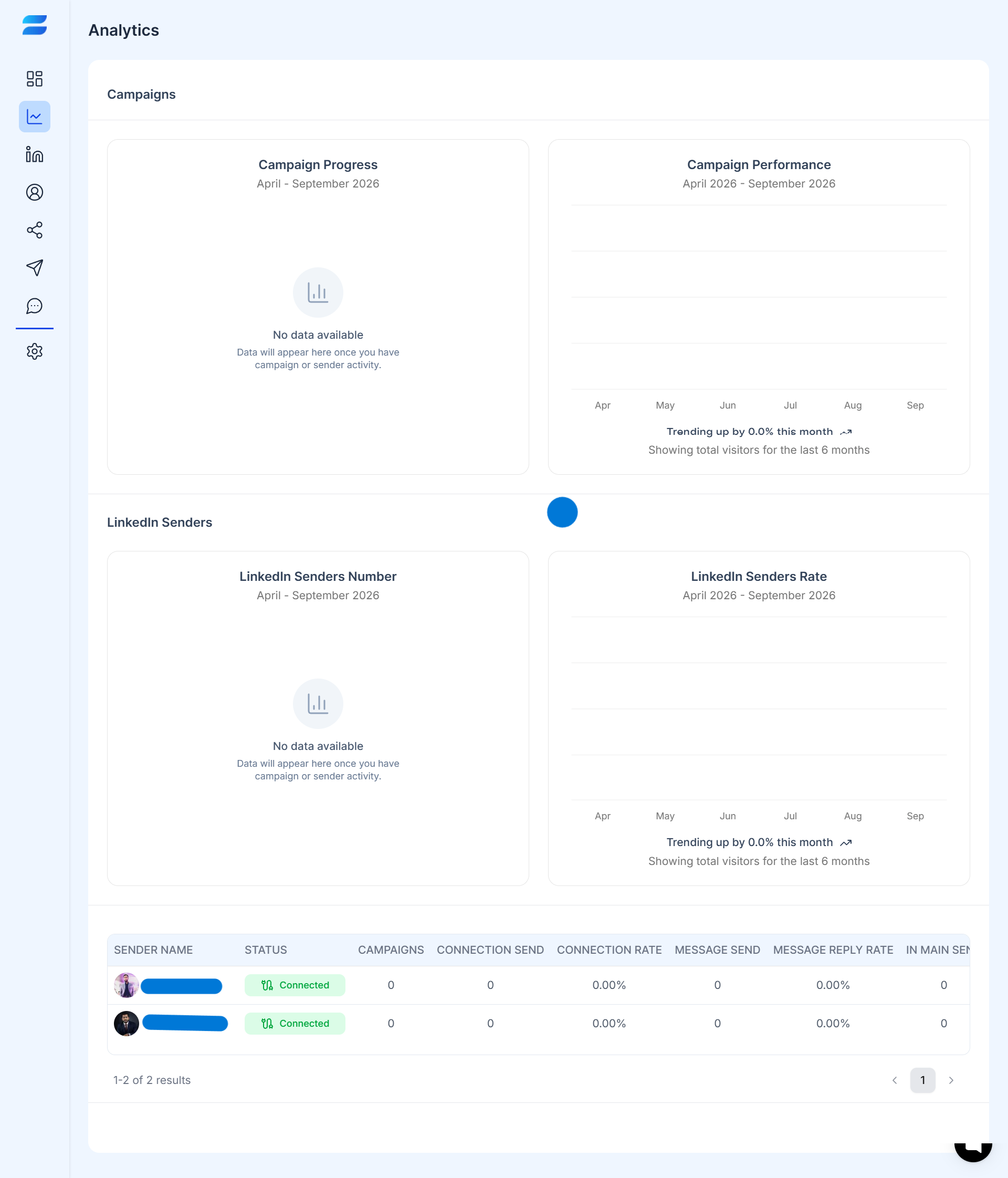
The dashboard is divided into key sections that help you understand both campaign performance and LinkedIn sender activity.
The Campaigns section gives you an overview of your campaign activity over the selected date range.
Depending on the available data, you can review:
Campaign progress
Campaign performance
Connections sent
Connections accepted
Messages sent
Message replies
InMail activity
The Campaign Progress chart helps you understand whether your campaigns are generating activity during the selected period.
The Campaign Performance chart provides a broader view of campaign activity over time.
If there is no campaign or sender activity yet, the dashboard will show No data available until activity is recorded.
The LinkedIn Senders section helps you understand how your connected LinkedIn senders are performing.
You can review:
Number of LinkedIn senders
Sender activity rate
Sender status
Number of campaigns
Connection sends
Connection rate
Message sends
Message reply rate
InMail activity
This allows you to identify which senders are actively contributing to your outreach and where performance may need attention.
Open the Analytics section.
Review the Campaigns section.
Check campaign progress and performance over the selected period.
Review the LinkedIn Senders section.
Compare sender activity and engagement rates.
Identify campaigns or senders with stronger or weaker performance.
Use the results to improve your targeting, messaging, or campaign strategy.
Review your analytics regularly rather than only when a campaign is performing poorly.
Start by looking at overall campaign activity. Then compare connection and message engagement before reviewing individual sender performance.
This gives you a better understanding of whether a performance issue is related to the campaign, messaging, targeting, or sender.
Tips
Don't optimize solely for volume.
A campaign that sends fewer messages but generates more meaningful replies can be more valuable than a campaign with high activity and low engagement.
Also, compare campaigns and senders with similar audiences whenever possible. This makes performance comparisons more useful.