
If you have multiple LinkedIn sender accounts connected to SendCopy.ai, the Omnibox lets you manage conversations from those accounts in one place. This makes it easier for sales teams and agencies to monitor conversations without switching between different LinkedIn accounts.
When to Use Multiple Sender Accounts
Multiple sales representatives
Different clients
Different campaigns
Different markets
Multiple business units
How to Switch Between Sender Accounts
1. Open the Omnibox.
2. Go to the sender account dropdown at the top of the page.
3. Select the LinkedIn sender account you want to review.
4. Review the conversations associated with that sender.
5. Open the conversation you want to manage.
6. Respond from the selected sender's context.
7. Apply any relevant organization or follow-up actions.
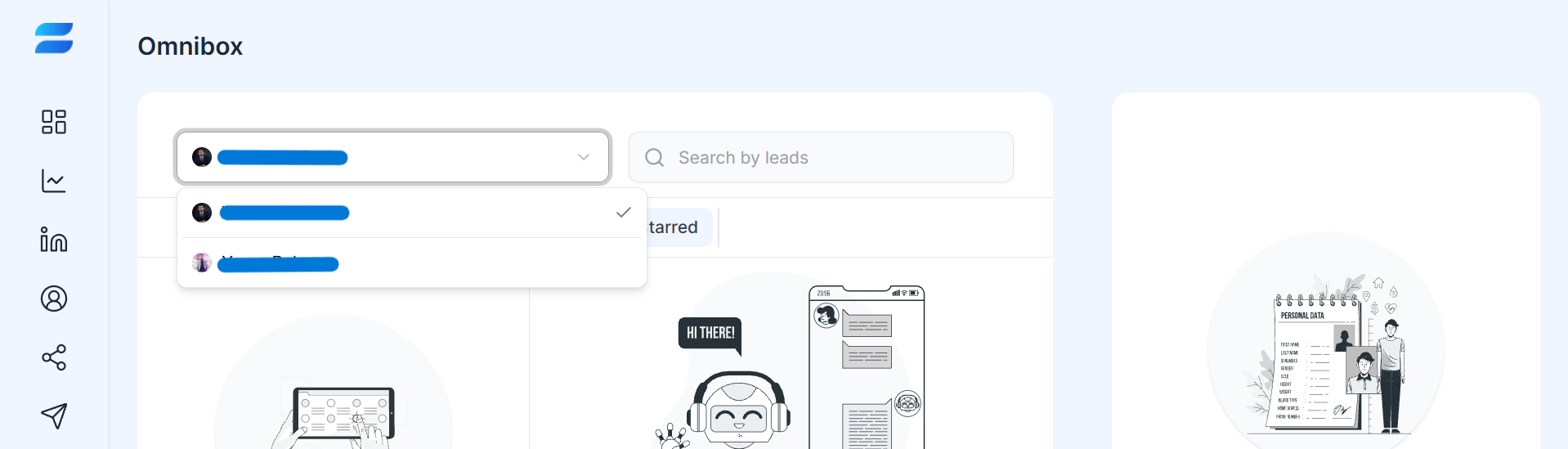
Reviewing Conversations
After selecting a sender account, review the conversation list to find prospects that need attention. You can use the available filters to narrow down your conversations, such as Unread, My Leads, InMail, or Starred.
Why This Helps
Monitor multiple LinkedIn accounts
Respond to prospects faster
Keep conversations organized
Reduce account switching
Separate conversations by sender
Manage outreach for multiple clients or campaigns
Important
Always verify the selected sender account before responding. When multiple accounts are connected, sending a response from the wrong sender can lead to confusion with prospects or internal teams.
Tips
Create a clear naming convention for your sender accounts so team members can quickly identify the correct account. For example, use names that clearly indicate the sales representative, client, or business unit associated with each account.
Related Articles