
Tags and labels help you organize conversations in the SendCopy.ai Omnibox. You can use them to identify the status or priority of a conversation and make it easier to find specific prospects later.
Why Use Tags?
Interested
Follow-up
Demo Requested
Not Interested
Customer
High Priority
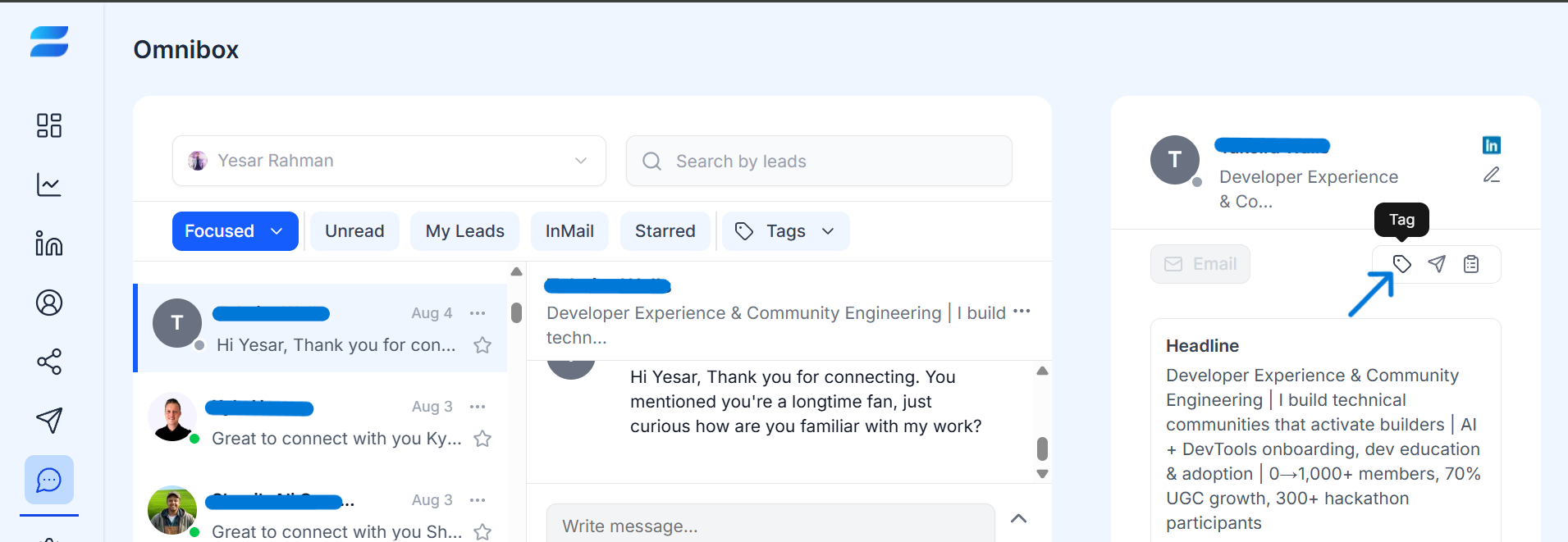
How to Assign a Tag
1. Open the Omnibox.
2. Select the conversation you want to organize.
3. Locate the conversation actions.
4. Click the Tag option.
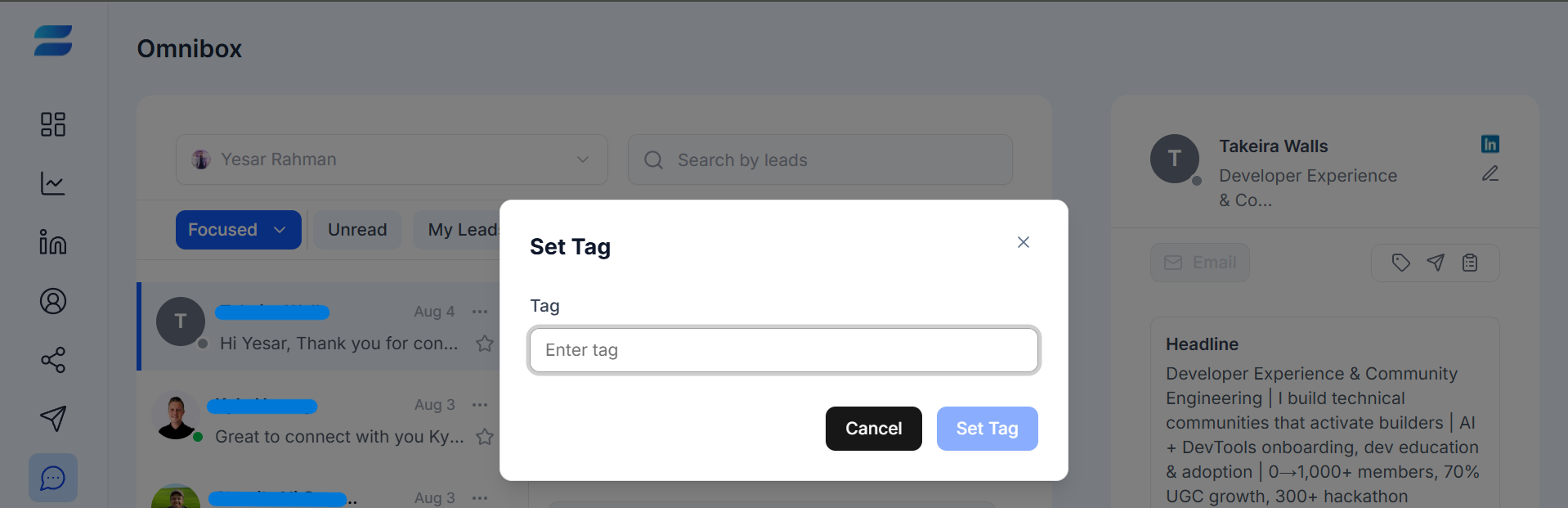
5. Choose/create the appropriate tag or label.
6. Apply the tag.
How to Use Tags Effectively
Use tags consistently across your team. For example, if your team uses Demo Requested for prospects who want a product demonstration, everyone should use the same tag instead of creating different labels such as Demo, Demo Lead, or Wants Demo. Consistent tags make filtering and follow-up easier.
Recommended Tag Structure
Lead Status: Interested, Not Interested, Customer
Next Action: Follow-up, Demo Requested, High Priority
Tips
↳ Use a consistent naming convention.
↳ Avoid creating too many similar tags.
↳ Use tags that communicate a clear status or action.
↳ Review your tags regularly and remove unnecessary ones.
↳ Make sure your team understands what each tag means.
Related Articles