
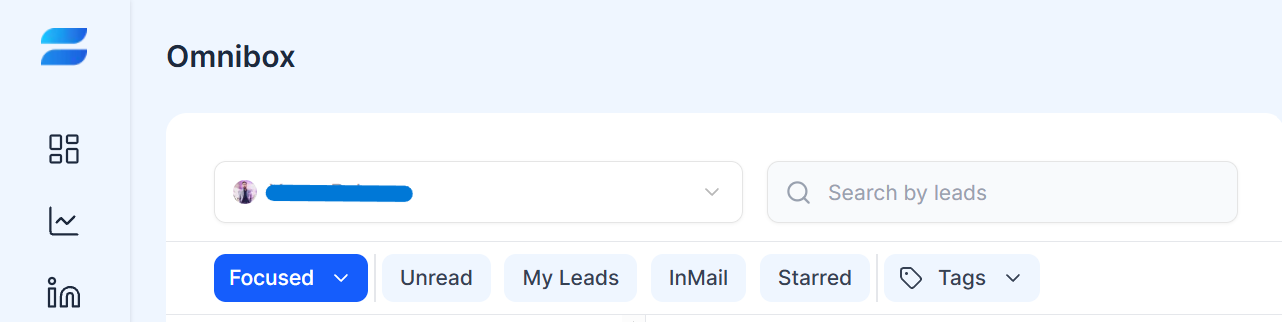
The Omnibox provides filters and search options to help you quickly find conversations. Instead of manually reviewing every conversation, you can narrow down your inbox and focus on the messages that need your attention.
Available Filters
Focused
Unread
My Leads
InMail
Starred
Sender account
Search by lead
Search by tags
How to Search for a Lead
1. Open the Omnibox.
2. Locate the Search by leads field.
3. Enter the lead's name or relevant search information.
4. Review the matching conversations.
5. Select the conversation you want to open.
How to Filter Conversations
6. Open the Omnibox.
7. Select the filter you want to use.
8. Review the conversations matching that filter.
9. Open a conversation to review the messages.
10. Respond or take the required action.
Useful Filtering Examples
Find conversations that need a reply by using Unread. Find important conversations by using Starred. Find InMail conversations by selecting InMail. Find a specific prospect by using Search by leads.
Tips
Use filters together with a consistent tagging system to keep your inbox organized. For example, you can use tags such as Interested, Follow-up, Demo Requested, High Priority, and Customer.
Related Articles